
Electronic Signature
Electronic signature enables signing, stamping and PDF output inside BabelBird file preview, review and automation workflows. It is suitable for contract approval, drawing countersignature, business forms, project delivery, review confirmation and internal policy release.
Positioning
Traditional signing often requires downloading files, converting formats, stamping with an external tool and uploading the result again. BabelBird places signing inside the file collaboration workflow so users can sign or stamp in the cloud, then save the result as PDF or continue with review, archiving and sharing.
Electronic signature commonly solves:
- Contracts, quotations, acceptance forms, drawings and approval forms need online signing.
- Files need signatures or stamps after approval.
- Outbound files should become less editable PDF outputs.
- Enterprises need traces for signing actions, review opinions and file versions.
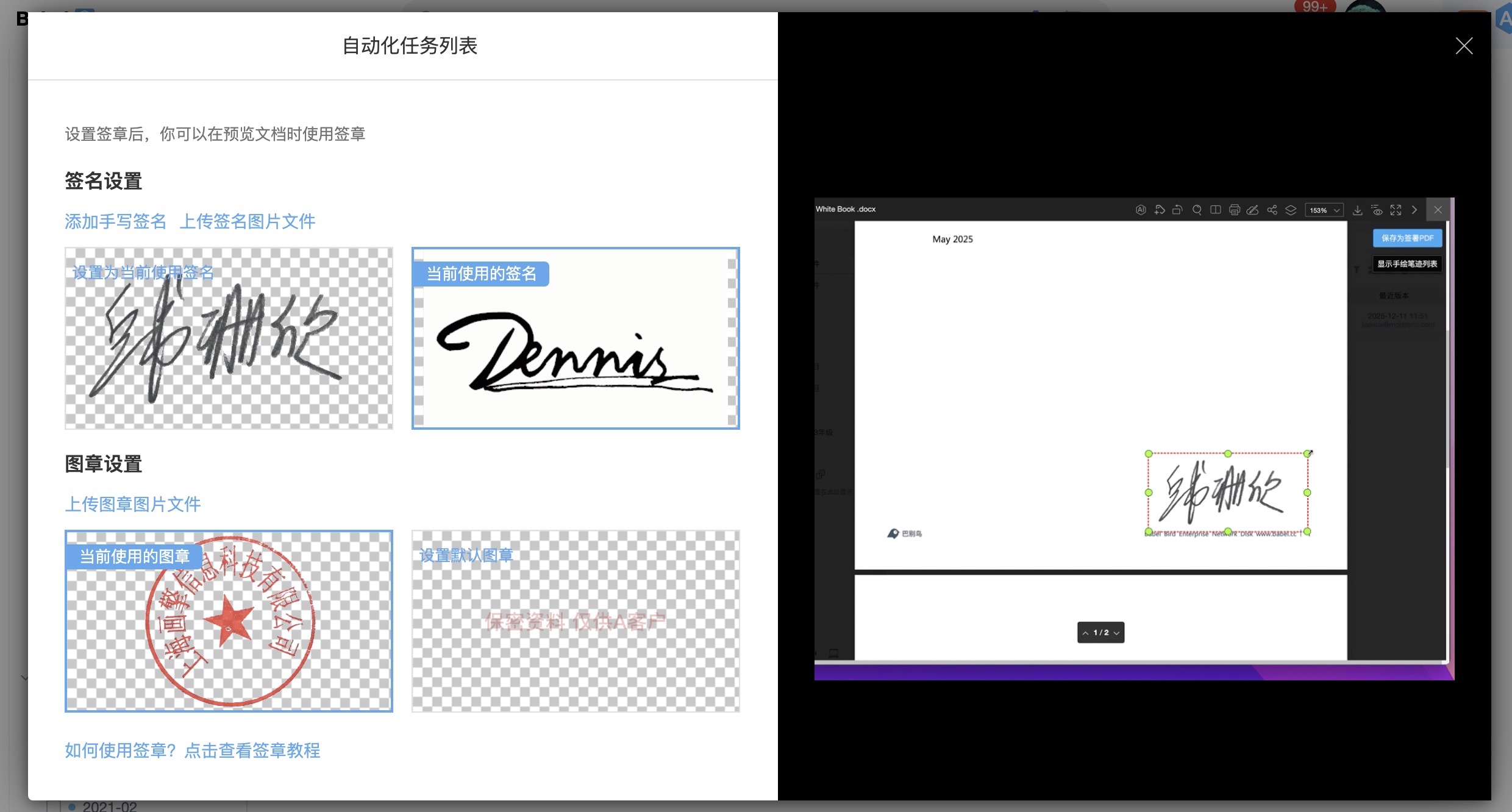
Signature Asset Library
The asset library manages signatures, stamps and default assets that users and enterprises can call.
| Asset | Description | Common operations |
|---|---|---|
| Handwritten signature | A personal signature created by online handwriting or image upload | Add, upload, set as current |
| Enterprise stamp | Official, business or project stamp images maintained by authorized roles | Upload, enable, disable, replace |
| Default asset | The user’s default signature or stamp among multiple assets | Set current signature or stamp |
| Signing tutorial | In-page guidance for signing workflows | View tutorial, adapt by device |
Transparent-background PNG images are recommended for assets that need to overlay documents. Enterprise stamp maintenance should be limited to administrators or authorized roles.
Signature Authentication
Signature authentication confirms ownership and usage permission for signature or stamp assets, reducing unauthorized upload, impersonation and misuse. The actual authentication method depends on deployment version, enterprise policy and administrator configuration.
Common control points include:
- User identity verification: confirm the current account before signing, optionally with SSO, account security policy or second verification.
- Asset ownership: personal signatures bind to personal accounts, while enterprise stamps bind to the enterprise or designated management roles.
- Usage authorization: only authorized users can upload, set, call or replace enterprise stamps.
- Operation traces: creating assets, setting defaults, applying signatures and exporting PDFs should enter logs or file records.
- Business review: contracts, official stamps, finance and HR signing should be combined with approval flows or administrator review.
Signature authentication is not a single stamping action. It is a control mechanism around asset creation, authorization, usage and output. Enterprises can combine it with file review, approval workflows, permissions, watermarks and audit logs.
Cloud Signing Workflow
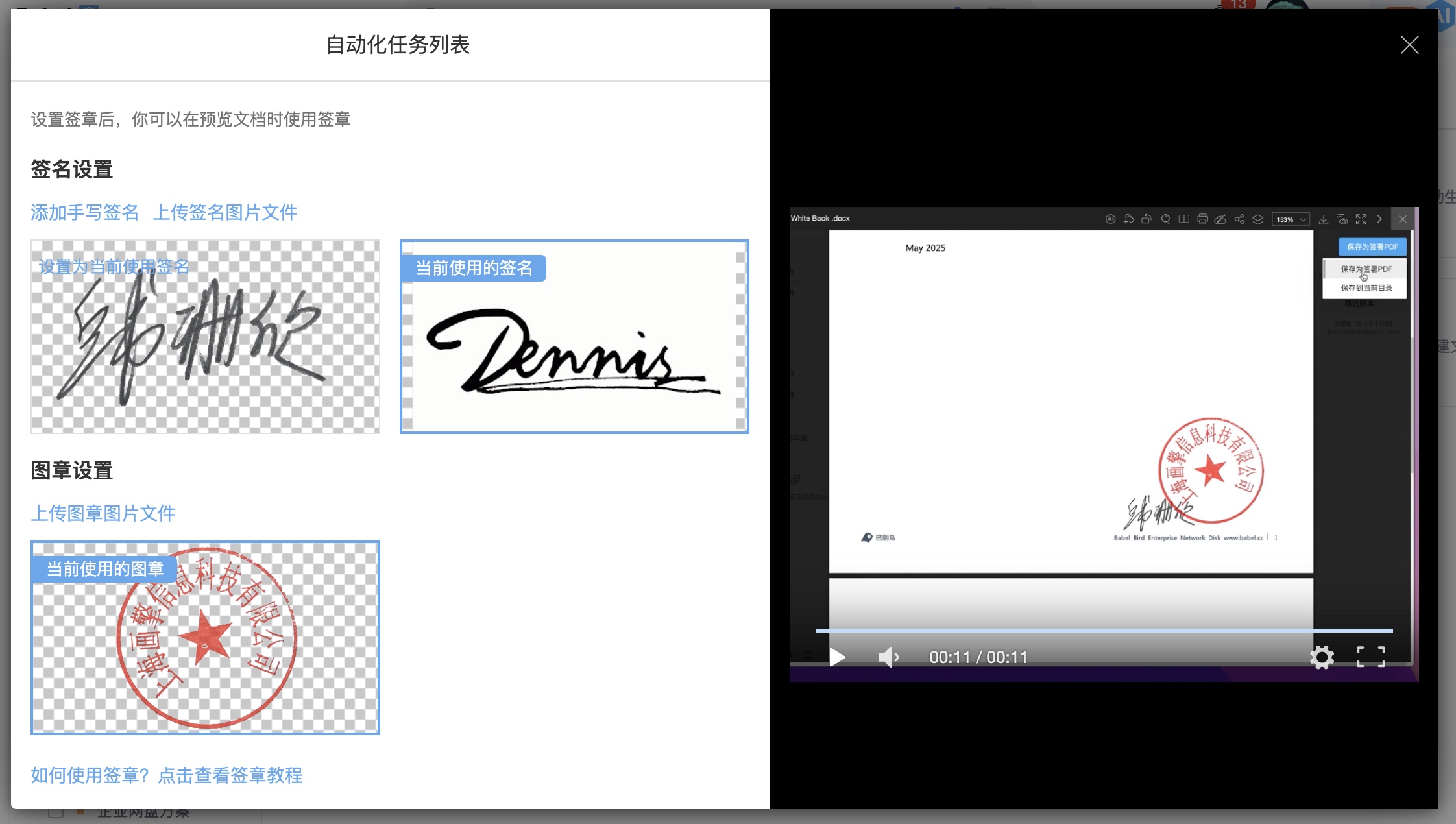
A typical workflow is:
- Maintain handwritten signatures or upload stamps in signature settings.
- Select the current signature or stamp.
- Open the file in preview, review or signing workflow.
- Place the signature or stamp at the target position and confirm scale and coordinates.
- Save the signing result and export to PDF if needed.
- Continue to versions, review reports, archiving, sharing or automation workflows.
Working With File Review
Electronic signature can combine with file review to create a closed loop of review comments, signatures/stamps, approval reports and PDF output. After review, the system can record signing results, stage opinions, participants and final status for project delivery, drawing countersignature, policy confirmation and contract approval.
Mobile And Multilingual Experience
The signing interface adapts to screen width. On wide screens, configuration and tutorials can be shown together. On narrow windows or mobile devices, the core signing area is prioritized and tutorials are folded into a touch-friendly entry. In multilingual environments, signing tutorials and UI copy should follow site language or enterprise configuration.
Security Guidance
- Enterprise stamps should be maintained only by administrators or authorized roles.
- High-risk signing should be combined with approval flows, file access control and audit logs.
- Outbound signed results are usually exported as PDF and can be watermarked.
- Confirm the file version before signing important files.
- Private deployment customers should define signature authentication, log retention and PDF output strategy during implementation.