
Batch Rename
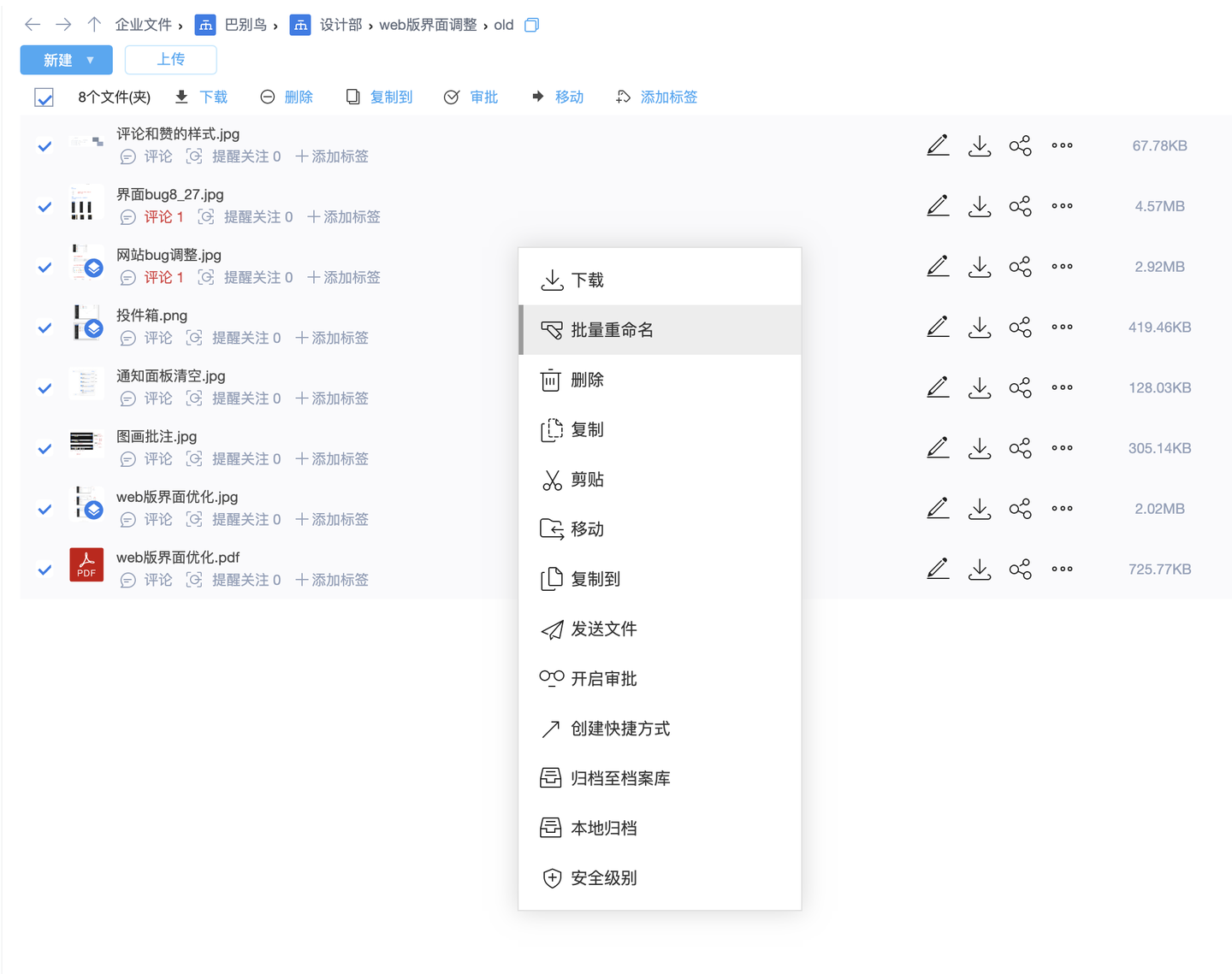
Batch rename immediately applies a naming rule to a selected group of files. It is useful for photos, contracts, scans, deliverables, design files and project materials that need quick cleanup. Unlike “Auto Rename”, batch rename is a user-triggered batch operation. Auto Rename is a persistent folder rule that standardizes future uploads.
Scenarios
| Scenario | Description |
|---|---|
| Project deliverable cleanup | Add customer name, project code, phase and serial number |
| Image and material organization | Generate names from shooting date, camera data, dimensions or business tags |
| Scan archiving | Rename scans by contract number, date, department or handler |
| File-name cleanup | Remove spaces, special characters, repeated prefixes, meaningless numbers or temporary marks |
| Migration intake | Normalize messy file names exported from legacy systems |
Naming Rules
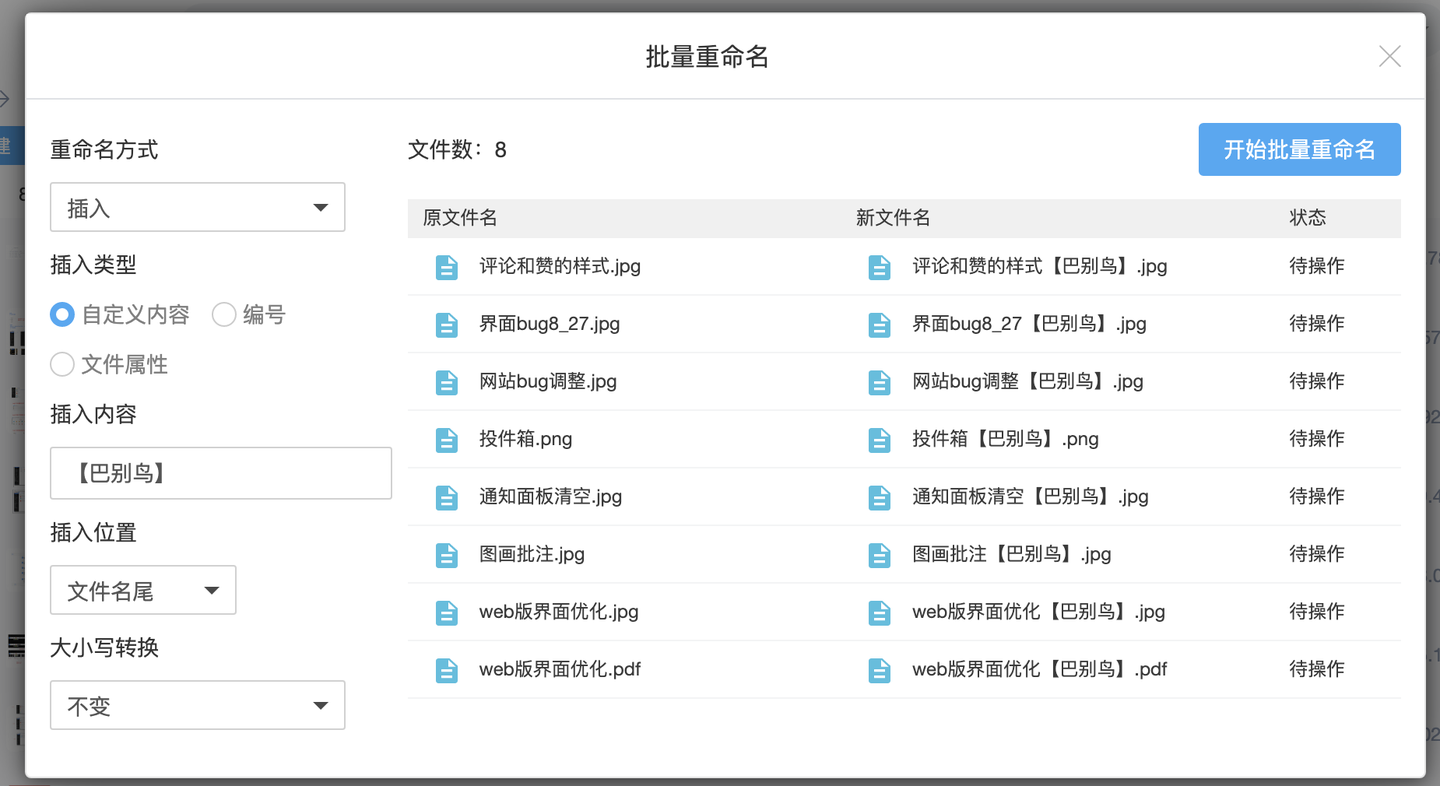
Batch rename usually combines multiple rule fragments to generate the new file name. Users should preview results before applying them to selected files.
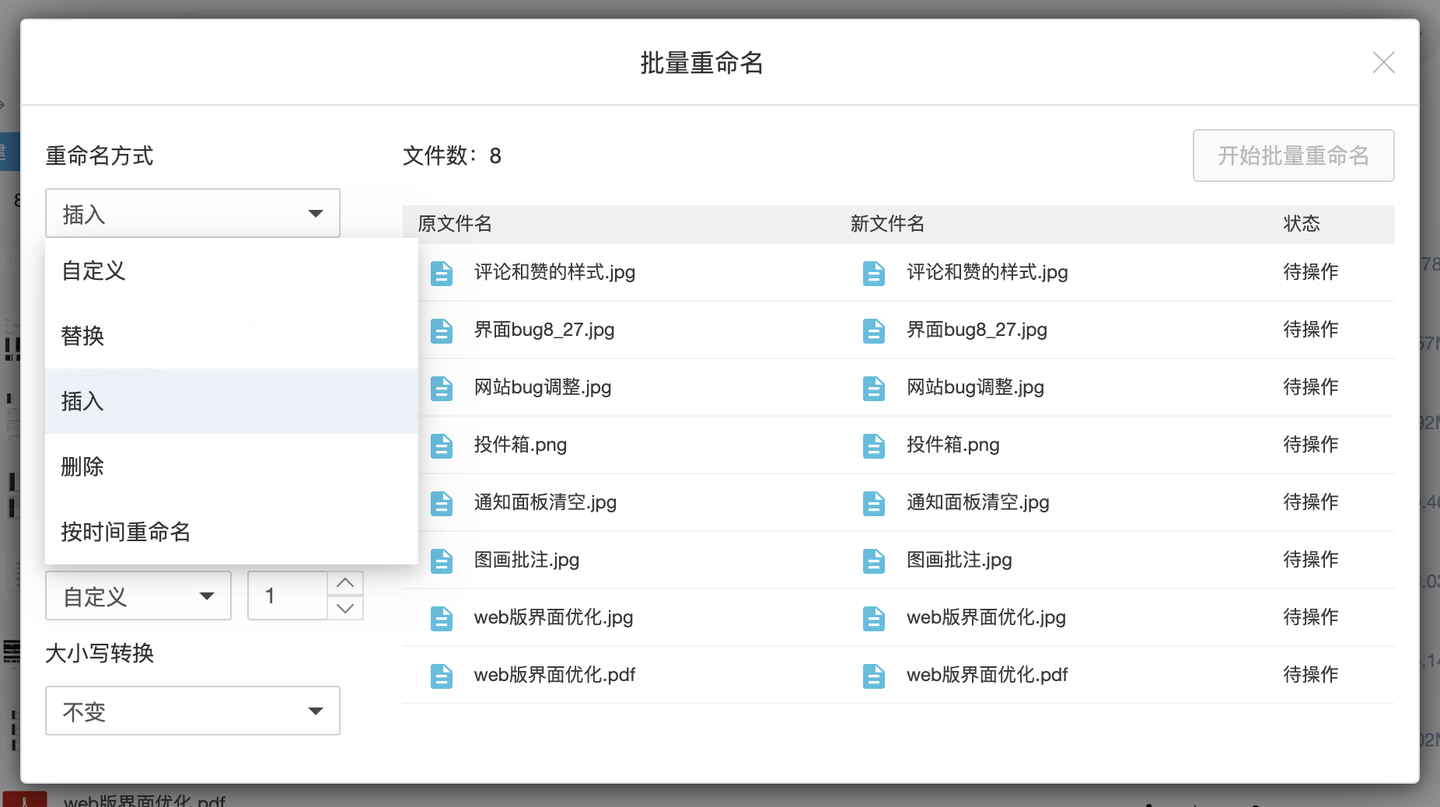
Common rules include:
- Add fixed prefixes or suffixes such as project code, customer name or department name.
- Replace or delete specified text such as “copy”, “final” or “temporary”.
- Insert serial numbers with start value, increment and digit width.
- Insert dates and times such as upload time, shooting time or modification time.
- Use file variables such as uploader, owner or parent folder name.
- Use image metadata such as shooting date, camera brand/model, lens model, dimensions and DPI/DPCM.
- Normalize case and separators for better readability and sorting.
Preview And Conflict Handling
Because batch rename affects multiple files, preview and conflict checks are important. A recommended workflow is:
- Select the files to process in the file list.
- Configure naming rules and review sample names plus old/new name pairs.
- Check for duplicate names, empty names, invalid characters and overly long names.
- Add numbering, dates or parts of the original name when necessary to avoid collisions.
- Apply the operation and keep traces in file logs or operation logs.
If a rule removes the original file name or may generate identical results, add numbering or another unique variable. For high-value files, test the rule on a small sample before processing the full folder.
Difference From Auto Rename
| Capability | Batch Rename | Auto Rename |
|---|---|---|
| Trigger | User selects files and runs it immediately | Runs in the background when files enter a folder |
| Object | Existing selected files | New uploads, with optional historical processing |
| Purpose | Quick cleanup and one-time normalization | Long-term folder naming governance |
| Entry | File list batch action | Folder context menu or automation channel |
| Risk control | Preview, conflict detection and confirmation | Rule testing, permissions and execution logs |
Permissions And Audit
Batch rename requires rename or edit permissions on the target files. Files inside departments, projects, material libraries, encrypted folders or file access control scopes still follow the corresponding permission rules. For enterprise data, combine access logs, file logs and role permissions so batch rename operations remain traceable.